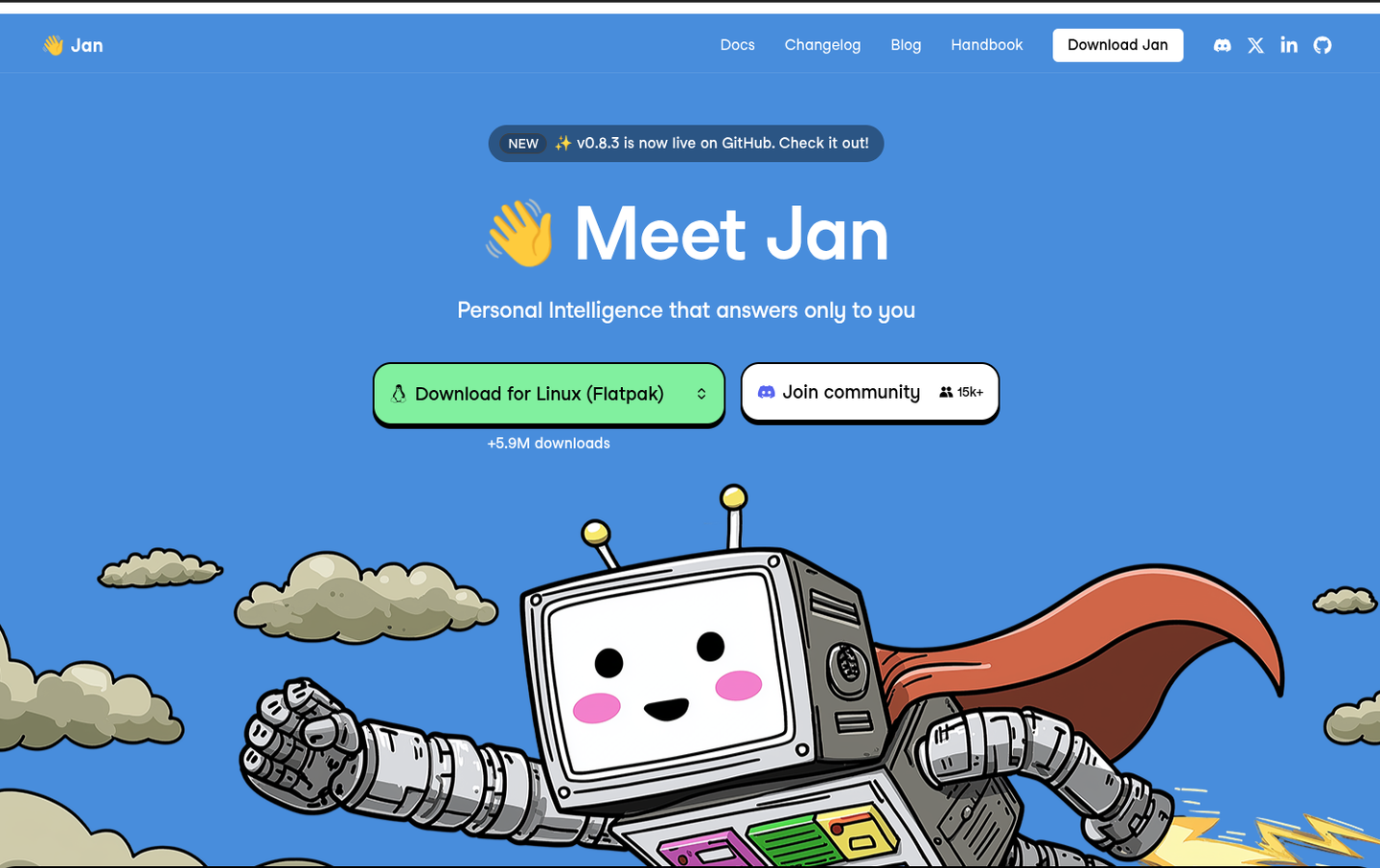
Jan AI Studio is one of the easiest ways to run AI models locally on your own computer. Instead of opening ChatGPT in a browser and sending your prompts to a cloud service, Jan lets you download open-source AI models and chat with them directly on your Windows, macOS, or Linux device.
This makes Jan useful for students, writers, researchers, developers, and everyday users who want a private AI chatbot without complicated command-line setup. It is often discussed alongside LM Studio, Ollama, GPT4All, and llama.cpp because all of these tools help people run AI models locally.
What Is Jan AI Studio?#
Jan AI Studio, often called Jan AI, is an open-source desktop app for using artificial intelligence models on your computer. It works like a local ChatGPT-style interface. You type a question, choose a model, and Jan generates a response.
The main difference is that Jan can run models locally. This means the model uses your computer’s processor, memory, and graphics card instead of depending fully on a remote AI server.
Jan can also connect to cloud AI providers if you want that option. However, its main appeal is local AI: privacy, control, offline use, and no need to pay per prompt when running open-source models on your own machine.
What Does Jan AI Studio Do?#
Jan AI Studio lets you chat with AI models, download local models, import models from Hugging Face, manage your saved models, and run a local API server. For beginners, the most important feature is the simple chat interface.
You can use Jan AI Studio to summarize notes, explain difficult topics, draft emails, brainstorm ideas, generate study questions, rewrite paragraphs, and experiment with local large language models.
For more advanced users, Jan also offers an OpenAI-compatible local API server. This means some apps and workflows can connect to Jan as if they were connecting to an OpenAI-style API, but the model can run on your own computer.
How Jan AI Studio Works#
Jan works by combining a friendly desktop interface with local model-running tools such as llama.cpp. Many local models use the GGUF format. GGUF is a model file format designed to make large language models easier to run on normal computers.
When you download a model in Jan, the model is stored on your device. When you ask a question, Jan sends your prompt to that local model. The model then predicts and generates a response.
Your experience depends heavily on your hardware. Smaller models, such as 3B or 7B models, are better for average laptops. Larger models may need more RAM, more VRAM, or a stronger GPU.
How to download, install, and run AI models using Jan AI on Windows, macOS, or Linux.
- 1. Download Jan AI
Go to jan.ai and download the installer for your operating system. Jan AI supports Windows, macOS (Apple Silicon and Intel), and Linux.
- 2. Install Jan AI
Run the installer and follow the on-screen steps. No command-line knowledge is needed.
- 3. Open Jan AI
Launch Jan AI from your Applications folder or Start menu. The app opens with a clean desktop interface.
- 4. Download a model
Go to the Hub tab. Search for a model such as Llama 3.2 or Mistral, then click Download. Jan AI handles the rest.
- 5. Start a conversation
Once the model has downloaded, select it and open a new Thread. Type your message to start chatting locally.
How to Install Jan AI Studio#
Before installing, go to the official Jan download page and choose the version for your operating system.
Install Jan AI Studio on Windows#
On Windows, download the standard 64-bit installer from the Jan download page. Jan supports Windows 10 and later. If your computer has an NVIDIA, AMD, or Intel Arc GPU, Jan may be able to use GPU acceleration for faster responses.
After downloading the installer, open it, follow the setup steps, and launch Jan from the Start menu.
Install Jan AI Studio on macOS#
On macOS, download the macOS version from the official Jan website. Jan works best on modern Macs, especially Apple Silicon Macs with enough memory.
Open the downloaded file, drag Jan into your Applications folder, and launch it. If macOS blocks the app at first, open it from System Settings or right-click the app and choose Open.
Install Jan AI Studio on Linux#
On Linux, Jan provides several installation options. Flatpak is usually the easiest option for beginners. AppImage and .deb packages are also available.
Download the Linux version from the official Jan download page, install it using your preferred package type, and then open Jan from your application launcher.
How to Download and Run Models in Jan AI Studio#
After installing Jan AI Studio, open the app and go to the models section. Choose a model that matches your computer’s hardware. Beginners should start with a smaller model before trying larger ones.
Download the model, wait for it to finish, then open a new chat and select that model. Type a simple prompt such as, “Explain artificial intelligence in simple terms.” Jan will load the model and generate a response locally.
If a model is too slow, choose a smaller one. If your computer has limited RAM, avoid very large models.
Is Jan AI free to use?
Yes. Jan AI is free and open-source. You can download it at jan.ai and run it on Windows, macOS, or Linux without any subscription fees. The models you download through Jan AI are also free. Jan AI does offer optional API access to cloud models, which would require the relevant provider API keys and their associated costs.
Does Jan AI work without an internet connection?
Yes. Once you have downloaded Jan AI and your chosen models, everything runs fully offline. Your conversations stay private and never leave your machine. You only need an internet connection to initially download Jan AI and to download new models. After that, you can disconnect entirely and the app continues to work.
What models can I run in Jan AI?
Jan AI supports a wide range of open-source models in GGUF format, including Llama 3, Mistral, Gemma, Phi, and Qwen. You can browse and download models directly from Jan AI's built-in Hub. The models you can run effectively depend on your available RAM and whether you have a compatible GPU for faster inference.
Is Jan AI better than Ollama?
Jan AI and Ollama serve slightly different needs. Jan AI provides a full graphical interface, making it easier for beginners who prefer a visual experience. Ollama is primarily command-line based, giving developers more flexibility and API access. If you want to run local AI without touching a terminal, Jan AI is the better starting point.
Does Jan AI work on Windows?
Yes. Jan AI has a native Windows installer available at jan.ai. It runs on Windows 10 and Windows 11. GPU acceleration is supported for NVIDIA cards via CUDA and AMD cards via ROCm. Without a GPU, Jan AI still runs models on your CPU, though inference will be slower for larger models.
Why I Recommend Jan AI Studio#
I recommend Jan AI Studio because it makes local AI easier for beginners. Tools like Ollama and llama.cpp are powerful, but they can feel technical for people who do not want to use the terminal. Jan gives users a cleaner starting point.
It is also useful for privacy-conscious users because local models can run on your own computer. This does not mean every Jan setup is automatically private in every situation, especially if you connect cloud providers. However, for local models, Jan gives you more control than a purely cloud-based chatbot.
Final Thoughts#
Jan AI Studio is a strong choice for anyone who wants to try local AI without learning complex commands. It works on Windows, macOS, and Linux, supports local model downloads, and gives beginners a simple ChatGPT-style interface.
If you are new to local AI, start with Jan AI Studio, download a small model, and test it with simple prompts. Once you understand how local models behave, you can explore larger models, Hugging Face imports, and the local API server.